
Gemini task automation is now live in India. On supported Android phones, you can ask Gemini to open apps like Zomato, Blinkit or Rapido, fill your cart or set up a ride, and then you just check and confirm the last step yourself.
Sounds like magic? It is close. But there are rules: it works only on a few phones, only in English, and only with selected apps. In this guide you will learn exactly who can use it, how to turn it on, how to give the right command, and the mistakes that can cost you money.
Quick answer: Gemini task automation in 30 seconds
- What it is: Gemini opens an app for you, taps and types like a human, and prepares your order or booking.
- Launched in India: 10 November 2026, along with the UK and Japan.
- Phones: Pixel 10, 10 Pro, 10 Pro XL, the Pixel 11 range, and Samsung Galaxy S26, Z Flip 8 and Z Fold 8 series.
- Language: English only for now. Hindi commands will not work for this feature.
- Indian apps spotted: Zomato, Blinkit, Rapido, BookMyShow, ixigo, McDelivery, KFC, Burger King and Starbucks India.
- Safety: you do the final confirm. Always check the cart, address and price before you pay.
Last updated: 13 November 2026
What is Gemini task automation?
Till now, AI assistants could only tell you things. You asked “best biryani near me” and then you still had to open the app, search, add to cart and pay.
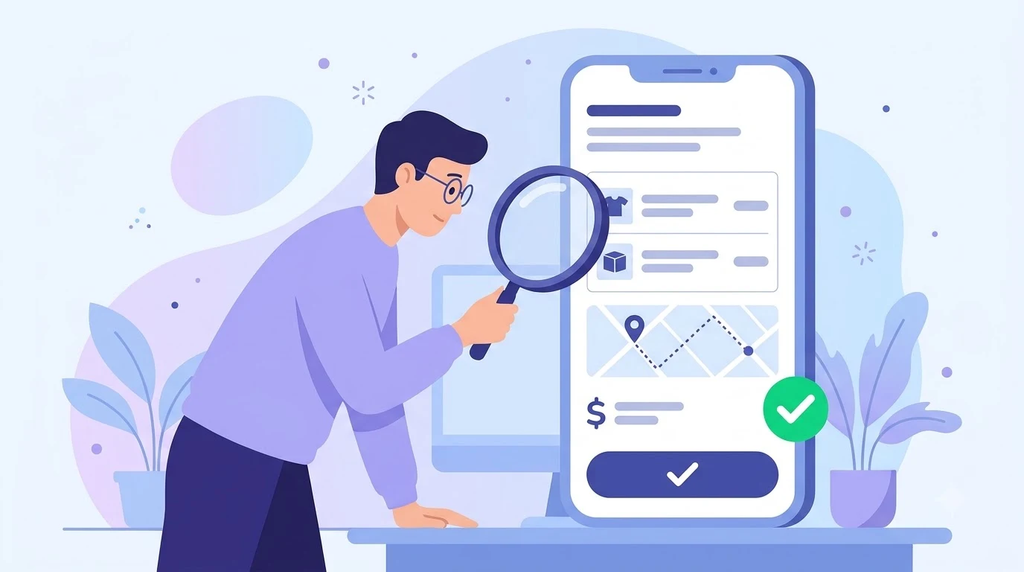
Task automation changes that. Google calls it screen automation. When you give Gemini a task, it opens the app inside a safe virtual window on your phone. Then it reads the screen and taps buttons the same way you would. You can watch every step live, and it keeps working in the background even if you close the chat.
Google first launched this beta in February 2026 for the US and Korea. In the November Pixel Drop announcement, Google confirmed it is now available in India too.
Which phones support it in India?
This is the biggest catch. You need a recent flagship phone, and you must be 18 or older with a personal Google account. Work, school and child accounts are not allowed.
| Brand | Supported models | Not supported |
|---|---|---|
| Google Pixel | Pixel 10, Pixel 10 Pro, Pixel 10 Pro XL, Pixel 11 series | Pixel 10a, Pixel 9 and older |
| Samsung | Galaxy S26 series, Galaxy Z Flip 8, Galaxy Z Fold 8, Galaxy Tab S12 series | Galaxy S25 and older |
| Others | Not listed on Google’s help page yet | Most mid-range phones |
If your phone is not on this list, the feature will simply not show up. Updating your phone will not unlock it.
Which Indian apps work with Gemini?
Google did not publish an official list of Indian apps. However, Android Authority found a hidden allowlist inside Android that names nine India-specific apps:
- Food: Zomato, McDelivery, KFC India, Burger King India, Starbucks India
- Groceries: Blinkit
- Rides: Rapido
- Tickets and travel: BookMyShow, ixigo
Swiggy and Zepto are not on the list right now, so Gemini cannot use them. Also note that being on the list does not guarantee an app works perfectly today. Google is still testing.
How to set up Gemini task automation (step by step)
Do this setup once and you are ready.
- Update everything. Install the latest system update (November Pixel Drop on Pixel) and update the Gemini app from the Play Store.
- Set your Gemini language to English. The feature only understands English commands for now.
- Log in to the apps you want to use. Open Zomato, Blinkit or Rapido once and make sure you are signed in with your address and payment method saved.
- Turn on screen automation. Open the Gemini app, tap the Menu, tap your profile picture, then go to Settings > Screen automation.
- Choose a permission. Pick Ask every time (recommended when you start) or Always allow.
How to order food or book a ride with Gemini
- Call Gemini. Long-press the power button, or say “Hey Google”, or open the Gemini app.
- Give a clear command in English. For example: “Order one chicken biryani from Behrouz on Zomato” or “Book a Rapido bike to Connaught Place”.
- Answer follow-up questions. Gemini may ask for missing details like size, address or pickup point before it makes a plan.
- Watch it work. Tap View progress in the chat or notification to see the app being used live. You can stop the task any time.
- Check and confirm. When the order or ride is ready, Gemini hands it back to you. Check the items, address and total, and then place the order yourself.

Tip: You can also start with a photo or your screen. For example, share a restaurant page and ask Gemini to book a table there.
5 good commands to try first
- “Reorder my last order on Zomato.”
- “Add milk, bread and eggs to my Blinkit cart.”
- “Book a Rapido auto from my home to the nearest metro station.”
- “Find two tickets for the evening show of the latest Hindi movie on BookMyShow.”
- “Search the cheapest train from Delhi to Jaipur this Saturday on ixigo.”
Short, specific commands work best. Always name the app.
Gemini vs doing it yourself: is it really faster?
| Task | Doing it yourself | With Gemini |
|---|---|---|
| Reorder last meal | Open app, find order, reorder, pay | One command, then confirm |
| Grocery list | Search every item one by one | Say the list once, Gemini fills the cart |
| Ride booking | Type pickup and drop, pick vehicle | One command, you check fare and confirm |
| Speed | Fast if you know the app well | Slower on screen, but you are free to do other things |
| Control | Full | You still approve the final step |
Honest verdict: for one quick reorder, your own thumb may still be faster. The real benefit is when you are busy, driving to a stop, cooking, or ordering a long list.
The common mistake: trusting it blindly
This is a beta feature, and Google itself warns that it can make mistakes. Its help page lists possible errors, including adding wrong items or even ordering without your permission.
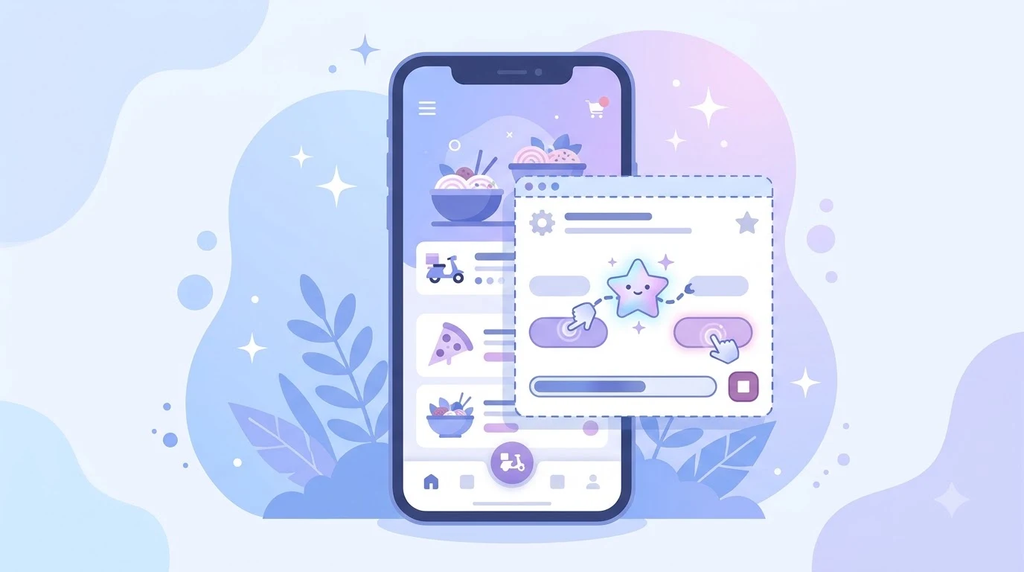
So never just tap “confirm” because Gemini says it is done. Check these three things every time:
- Items and quantity – “2 biryani” can become “2 kg” in a grocery app.
- Address – especially if you have home and office saved.
- Final price – look at delivery fee, surge and coupons.
Also remember: if Gemini prepares an order and you do not complete it, the items may stay in your cart. Clear it if you change your mind.
Pro tips to get better results
- Keep “Ask every time” on for the first few weeks. You stay in control of which app Gemini opens.
- Save your addresses with clear names like “Home” or “Office” inside each app. Gemini picks the right one more easily.
- Use it for repeat orders. “Reorder my usual” is where it saves the most time.
- Watch the daily limit. There is a cap on how many automation requests you can make per day, and heavy use may need a paid plan.
- Protect your phone. Anyone who unlocks your phone can now order with one sentence. Use a strong screen lock. Our guide on data security covers the basics.
Want to understand how your phone talks to these apps in the first place? Read our simple explainer on how the internet works.
FAQ: Gemini task automation in India
1. Is Gemini task automation free in India?
Yes, you do not need a subscription to start. But there is a daily limit on automation requests, and Google says heavier use may require a paid plan.
2. Can I give commands in Hindi?
Not for this feature yet. Screen automation currently works only in English. You can still use Hindi for normal Gemini chats.
3. Does Gemini work with Swiggy and Zepto?
No. Swiggy and Zepto are not on the supported list right now. For food you can use Zomato, and for groceries you can use Blinkit.
4. Will Gemini pay for my order automatically?
Gemini is designed to stop and let you do the final step, like placing the order or confirming the ride. Still, check everything before you pay, because it is a beta feature.
Final words
Gemini task automation is the first time an AI assistant in India can actually do the work inside your apps, not just talk about it. It is limited to costly phones and English for now, but expect more phones, apps and languages soon.
New to all this? Start with our basic guide on what the internet is.
Your turn: which task would you hand over to Gemini first – your Zomato order, a Rapido ride or the Blinkit grocery list? Tell us in the comments!